 상태(State) 변화 테스트 - React로 시작하는 TDD 6편Testing State Changes - TDD with React Part 6
📅
들어가기 전에 🔗
지난 5편에서는 컴포넌트를 분리하는 리팩토링을 진행했습니다.
지금까지의 테스트는 단순히 "화면에 버튼이 있는가?" 정도를 확인하는 수준이었습니다.
하지만 실제 애플리케이션은 훨씬 역동적입니다.
버튼을 누르면 새로운 메시지가 갑자기 나타나기도 하고, 특정 조건이 되면 경고창이 뜨기도 합니다.
오늘은
React
의 조건부 렌더링
(Conditional Rendering)을 테스트하는 방법과, 없는 요소
를 테스트하는 방법을 배워보겠습니다.시나리오: 경고 메시지 표시 🔗
우리의
Counter
컴포넌트에 새로운 규칙을 추가해 봅시다.요구사항:숫자가 3 이상이 되면 "숫자가 너무 커요!"라는 빨간색 경고 문구를 화면에 표시한다.
이 기능은
상태
(State)가 변함에 따라 화면의 구조
(UI)가 바뀌어야 합니다.
이 과정을 눈으로 직접 확인하면서 테스트를 작성해 보겠습니다.1단계: 테스트 추가 🔗
src/components/Counter.test.tsx 파일의 전체 내용을 아래 코드로 교체해 주세요.
기존 테스트는 유지하고, 새로운 테스트 케이스를 추가했습니다.
이번에는 console.log와 screen.debug()를 사용하여 테스트 진행 과정을 확인해 보겠습니다.import { render, screen } from '@testing-library/react';
import userEvent from '@testing-library/user-event';
import Counter from './Counter';
describe('Counter 컴포넌트 동작 테스트', () => {
// [기존 테스트]
test('초기값은 0이며, + 버튼을 누르면 숫자가 1 증가한다', async () => {
const user = userEvent.setup();
render(<Counter />);
const initialText = screen.getByText('현재 숫자: 0');
const incrementBtn = screen.getByRole('button', { name: '+' });
expect(initialText).toBeInTheDocument();
expect(incrementBtn).toBeInTheDocument();
await user.click(incrementBtn);
expect(screen.getByText('현재 숫자: 1')).toBeInTheDocument();
});
// [신규 테스트] 조건부 렌더링 검증
test('숫자가 3 이상이 되면 경고 문구가 나타난다', async () => {
const user = userEvent.setup();
render(<Counter />);
const incrementBtn = screen.getByRole('button', { name: '+' });
console.log('[Step 1] 초기 상태 확인');
// 아직은 경고 문구가 없어야 합니다.
// getByText는 찾는 요소가 없으면 에러를 내므로, 없을 때를 확인할 때는 queryByText를 씁니다.
const warningMsg = screen.queryByText('숫자가 너무 커요!');
expect(warningMsg).not.toBeInTheDocument();
console.log('[Step 2] 버튼 3번 클릭 시작');
// 버튼을 3번 클릭합니다.
for (let i = 1; i <= 3; i++) {
await user.click(incrementBtn);
console.log(` -> 클릭 ${i}회 완료`);
}
console.log('[Step 3] 클릭 후 화면 상태 디버깅');
// 이 시점의 HTML 구조를 터미널에 출력합니다. 경고 문구가 있는지 눈으로 확인해보세요.
screen.debug();
// 이제 경고 문구가 보여야 합니다.
expect(screen.getByText('숫자가 너무 커요!')).toBeInTheDocument();
});
});getBy vs queryBy 🔗
여기서 중요한 개념이 등장합니다.
- getBy...(예:
getByText) 요소가 있으면 가져오고,없으면 즉시 에러(Test Fail)를 발생시킵니다. "무조건 있어야 해!"라고 확신할 때 씁니다. - queryBy...(예:
queryByText) 요소가 있으면 가져오고,없으면 null을 반환합니다. "있을 수도 있고 없을 수도 있어(혹은 없어야 해)"를 확인할 때 씁니다.
초기 상태에서는 경고 문구가
없어야
하므로, 에러를 내지 않는 queryByText를 사용해서 not.toBeInTheDocument()로 검증했습니다.2단계: 테스트 실행 (Red) 🔗
이제 터미널에서 테스트를 실행해 봅시다.
npm test실행 로그 확인 🔗
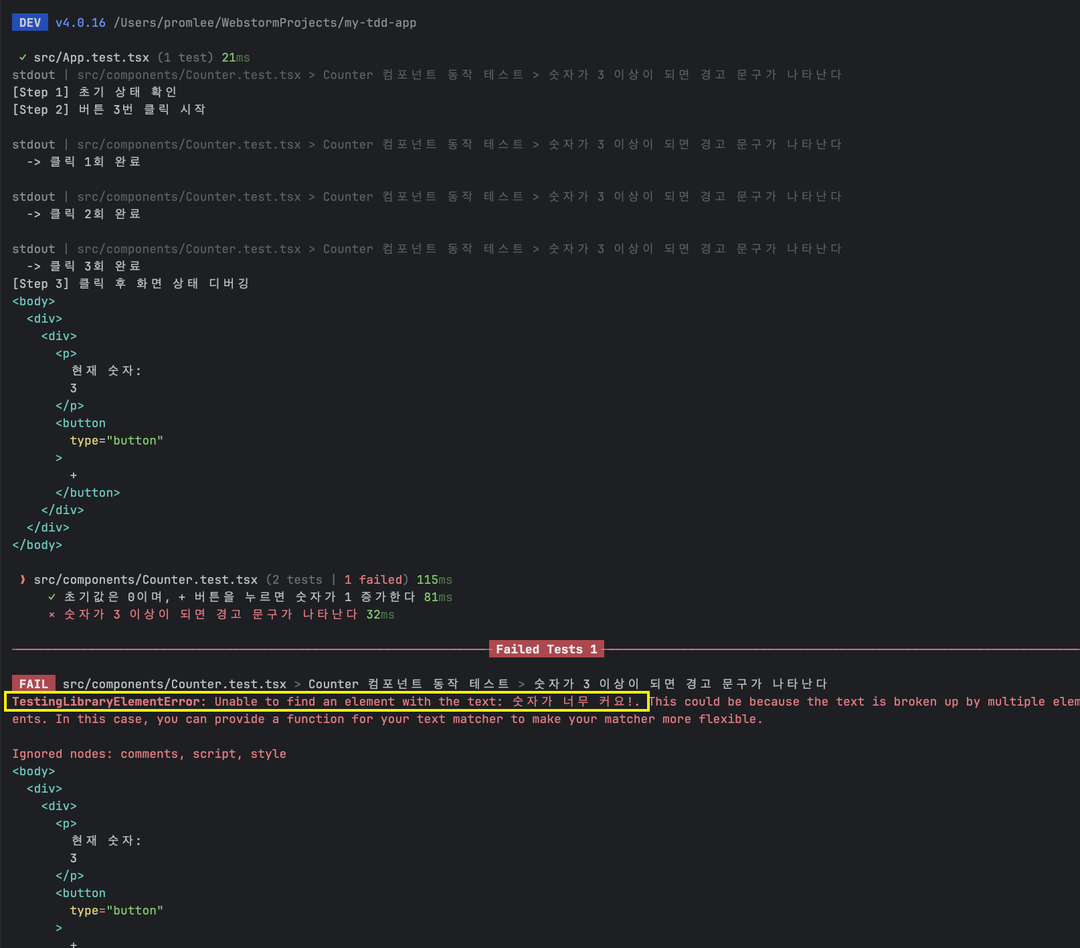
실행 로그 확인
[Step 1] 초기 상태 확인
[Step 2] 버튼 3번 클릭 시작
  -> 클릭 1회 완료
  -> 클릭 2회 완료
  -> 클릭 3회 완료
[Step 3] 클릭 후 화면 상태 디버깅
<body>
  <div>
    <div>
      <p>현재 숫자: 3</p>
      <button type="button"> + </button>
    </div>
  </div>
</body>

FAIL src/components/Counter.test.tsx
TestingLibraryElementError: Unable to find an element with the text: /숫자가 너무 커요!/
로그를 자세히 보세요.
[Step 3]에서 출력된 HTML(screen.debug)을 보면, 숫자는 3으로 잘 변했지만 우리가 기대한 "숫자가 너무 커요!"라는 문구는 어디에도 없습니다.
그래서 마지막 expect 문에서 에러가 발생하며 테스트가 실패했습니다.3단계: 기능 구현 (Green) 🔗
이제 경고 문구를 조건부로 보여주도록 코드를 수정하겠습니다.
src/components/Counter.tsx 파일 전체 코드를 아래와 같이 수정합니다.import { useState } from 'react';
import CountButton from './CountButton';
export default function Counter() {
const [count, setCount] = useState(0);
const handleClick = () => {
setCount(prev => prev + 1);
};
return (
<div>
<p>현재 숫자: {count}</p>
<CountButton label="+" onClick={handleClick} />
{/* [추가] 조건부 렌더링: count가 3보다 크거나 같으면 경고 메시지 표시 */}
{count >= 3 && (
<p style={{ color: 'red' }}>
숫자가 너무 커요!
</p>
)}
</div>
);
}4단계: 테스트 재실행 및 결과 분석 🔗
다시 테스트를 실행합니다.
npm test성공 로그 확인 🔗
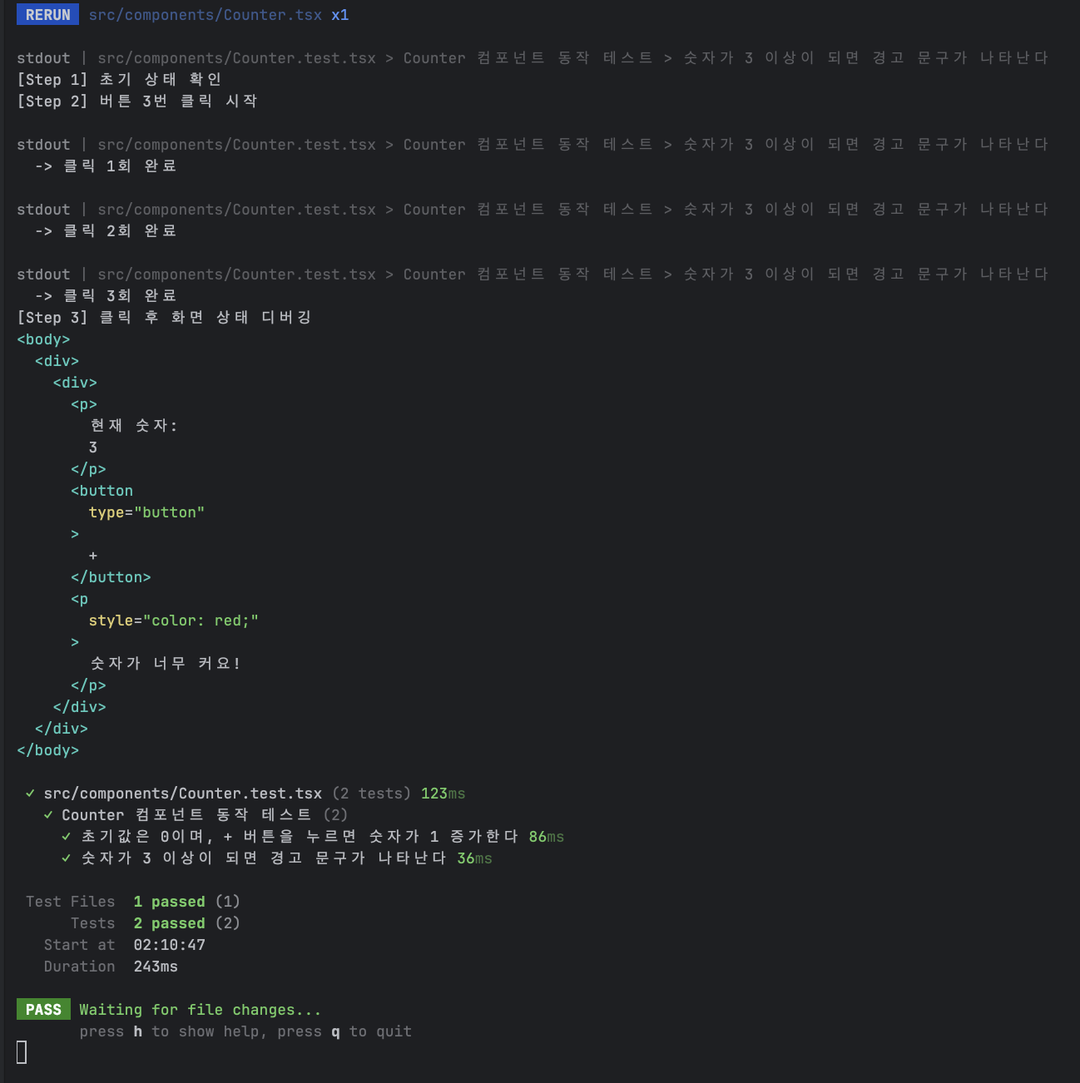
성공 로그 확인
[Step 1] 초기 상태 확인
[Step 2] 버튼 3번 클릭 시작
  -> 클릭 1회 완료
  -> 클릭 2회 완료
  -> 클릭 3회 완료
[Step 3] 클릭 후 화면 상태 디버깅
<body>
  <div>
    <div>
      <p>현재 숫자: 3</p>
      <button type="button"> + </button>
      <p style="color: red;">
        숫자가 너무 커요!
      </p>
    </div>
  </div>
</body>

PASS src/components/Counter.test.tsx
이번에는
[Step 3] 로그를 보면 <p style="color: red;">숫자가 너무 커요!</p> 태그가 선명하게 보입니다.
우리가 작성한 조건부 렌더링
(Conditional Rendering) 로직이 정확하게 동작했다는 증거입니다.결론 🔗
소스 코드는 GitHub - Promleeblog/react-tdd-setup↗ 에서 확인할 수 있습니다.
git clone https://github.com/PROMLEE/my-tdd-app.git
cd my-tdd-app
git checkout part6
오늘은
상태
(State) 변화에 따라 화면이 달라지는 조건부 렌더링
(Conditional Rendering)을 테스트했습니다.- 로그 활용
console.log와screen.debug()를 테스트 코드에 심어두면, 테스트가 실행되는 과정을 눈으로 추적할 수 있어 디버깅이 쉬워집니다. - queryBy의 역할화면에 요소가없음을 검증할 때는
getBy대신queryBy를 사용해야 합니다. - 동적 UI 검증사용자의 행동(클릭 3회)에 따라 UI가 실시간으로 변하는 것을 확인했습니다.
이제 우리 컴포넌트는 제법 똑똑해졌습니다.
하지만 로직이 점점 복잡해지고 있습니다.
컴포넌트 안에 UI 코드와 비즈니스 로직(상태 관리)이 섞여 있으면 나중에 관리하기 힘들어집니다.
다음 시간에는7편. Custom Hook 테스트를 통해, 이 복잡한 로직을 밖으로 끄집어내고 따로 테스트하는 기술을 배워보겠습니다.
참고 🔗
- Testing Library Queries↗ getBy, queryBy, findBy의 차이점을 명확하게 설명한 공식 문서입니다.
- Conditional Rendering in React↗ React에서 조건부 렌더링을 구현하는 다양한 패턴(AND 연산자, 삼항 연산자 등)을 설명합니다.