is a framework that makes zsh configuration easier to manage. It provides a large collection of themes and plugins that are easy to install and enable.
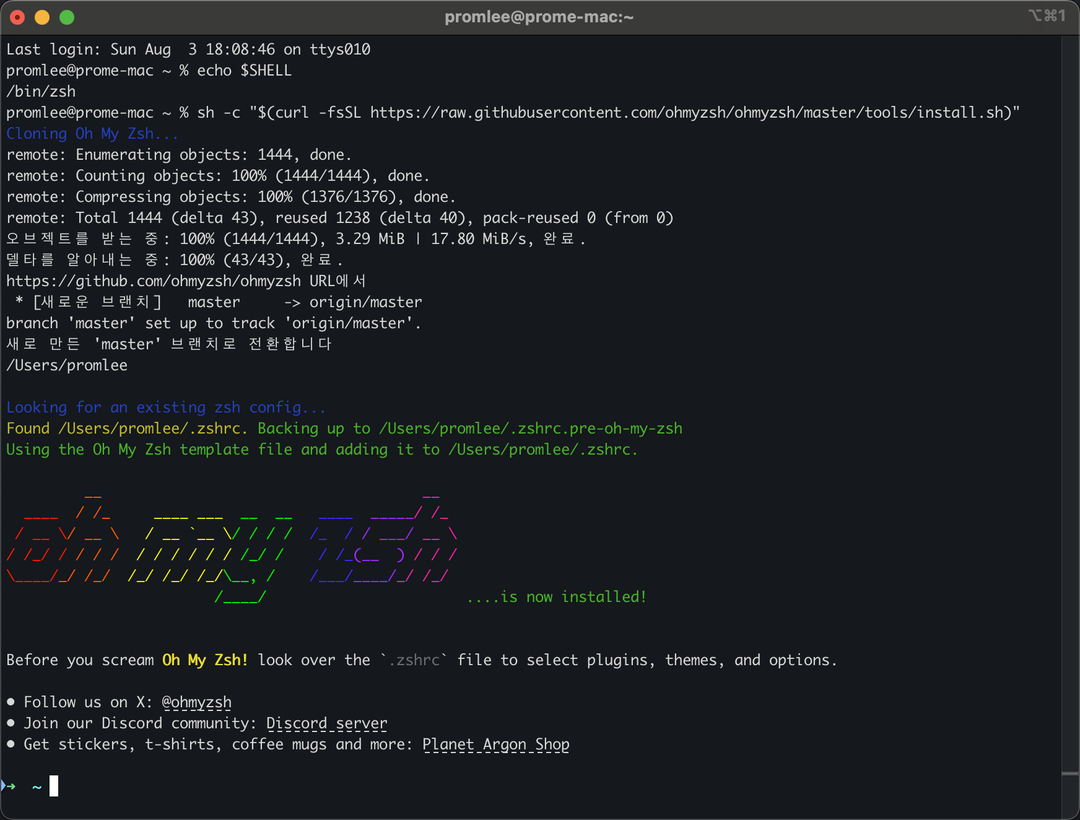
Copy and paste the following command into your terminal.
sh -c "$(curl -fsSL https://raw.githubusercontent.com/ohmyzsh/ohmyzsh/master/tools/install.sh)"
Oh My Zsh
After installation, close and reopen the terminal. The prompt at the start of the command line will look a little different. From now on, manage your shell settings in ~/.zshrc. Open it in your editor and you'll see that it already contains several settings.
Plugins let you add features to your shell. We'll install two popular ones.
1. Syntax Highlighting with zsh-syntax-highlighting 🔗
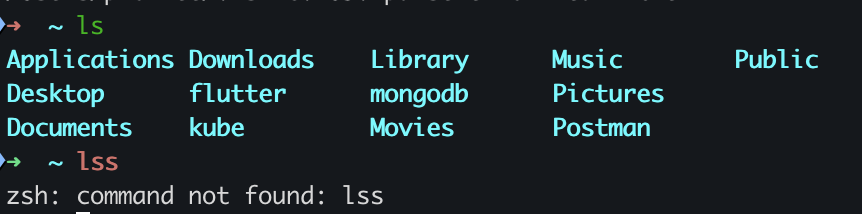
This plugin colors the commands you type. Valid commands appear in green, and commands that aren't recognized appear in red, which helps you spot typos immediately. Install the plugin with the command below.
brew install zsh-syntax-highlighting
Then configure Oh My Zsh to load it. Open ~/.zshrc with this command.
This plugin suggests commands in gray as you type, using your command history. If the suggestion is what you want, press Right Arrow or End to accept it. This saves you from retyping long or complicated commands. The installation is similar to the previous plugin.
, one of the popular choices. Open ~/.zshrc, find ZSH_THEME, and change it as follows.
ZSH_THEME="agnoster"
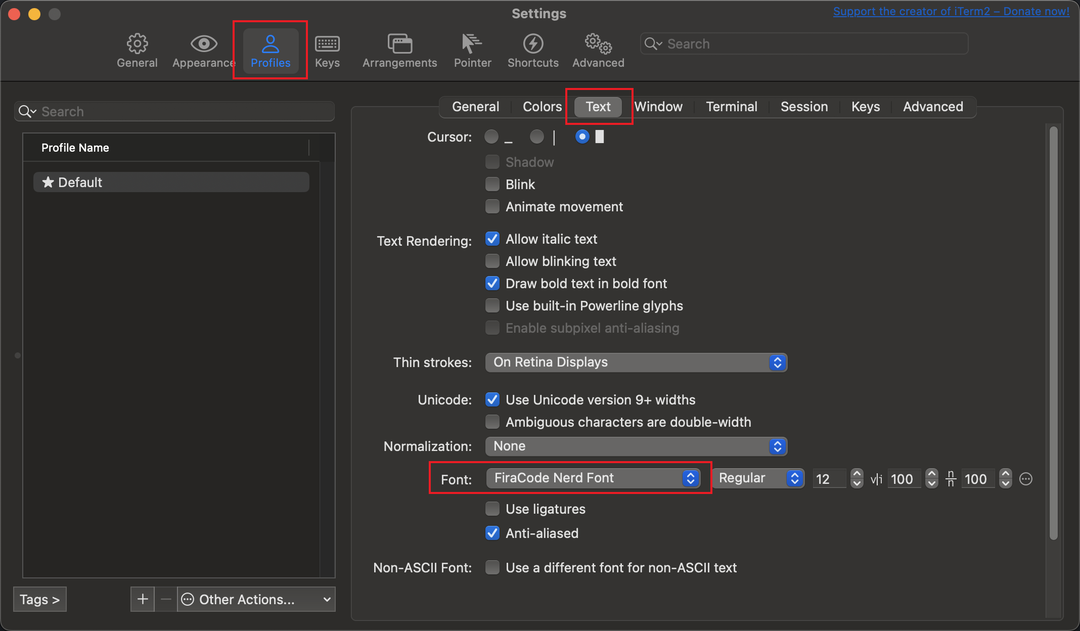
Save and restart the terminal. Your prompt now uses several colors and symbols. Some symbols may appear as missing or broken characters because ordinary fonts don't include the glyphs the theme uses.
We set up iTerm2 and customized the macOS shell with Oh My Zsh. There are many other themes and plugins to explore, so try the ones that suit how you work.
 Customize Your macOS Terminal with iTerm2 and Oh My Zsh