 React Native(Expo)でトーストメッセージを表示する(react-native-toast-message)
📅
この記事はExpo環境とreact-native-toast-message↗ 2.2.1を前提にしています。 React Native CLIでも同じ方法で使えます。
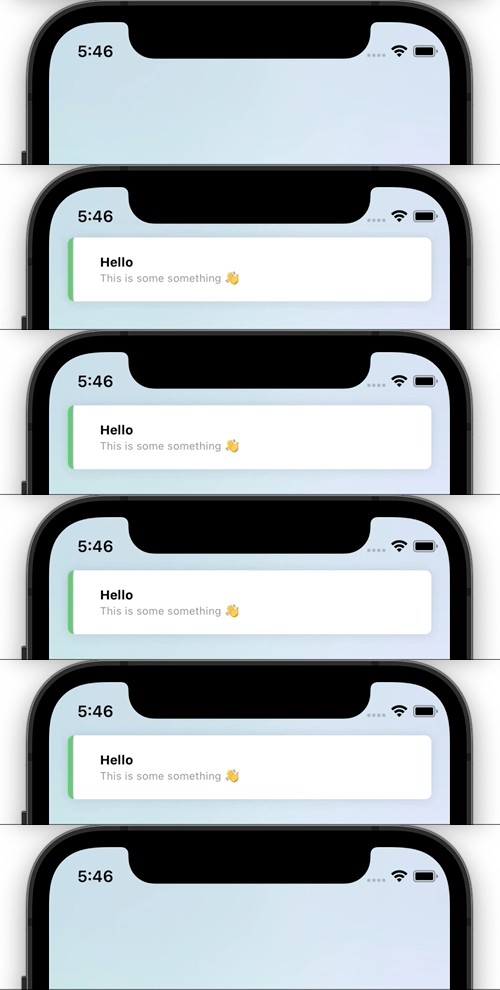
npm install react-native-toast-message/app/_layout.tsx に、次の設定を追加します。import Toast from 'react-native-toast-message';
export default function RootLayout({ children }: { children: React.ReactNode }) {
return (
<View>
{children}
<Toast />
</View>
);
}app.tsx に、次の設定を追加します。import Toast from 'react-native-toast-message';
export function App( props: any ) {
return (
<>
{/* ... */}
<Toast />
</>
);
}import Toast from 'react-native-toast-message';
import { Button } from 'react-native'
export function Page() {
const showToast = () => {
Toast.show({
type: 'success',
text1: 'Hello',
text2: 'This is some something 👋'
});
}
return (
<Button
title='Show toast'
onPress={showToast}
/>
)
}/app/_layout.tsx(Expo)または app.tsx(React Native CLI)に、次の設定を追加します。
この例では、3種類のトーストを表示します。successとerrorは標準のトーストを変更して使い、tomatoToastは独自のトーストを使います。import Toast, { BaseToast, ErrorToast } from 'react-native-toast-message';
const toastConfig = { // config 변수 추가
success: (props) => (
<BaseToast
{...props}
style={{ borderLeftColor: 'pink' }}
contentContainerStyle={{ paddingHorizontal: 15 }}
text1Style={{
fontSize: 15,
fontWeight: '400'
}}
/>
),
error: (props) => (
<ErrorToast
{...props}
text1Style={{
fontSize: 17
}}
text2Style={{
fontSize: 15
}}
/>
),
tomatoToast: ({ text1, props }) => (
<View style={{ height: 60, width: '100%', backgroundColor: 'tomato' }}>
<Text>{text1}</Text>
<Text>{props.uuid}</Text>
</View>
)
}
export default function Page() {
return (
<View>
{children}
<Toast config={toastConfig} />
</View>
);
}import Toast from 'react-native-toast-message';
import { Button } from 'react-native'
export function Page() {
const showToast = () => {
Toast.show({
type: 'tomatoToast',
props: { uuid: 'uuid example' }
});
}
const showErrorToast = () => {
Toast.show({
type: 'error',
text1: 'Error',
text2: 'This is some something 👋'
});
}
return (
<Button
title='Show toast'
onPress={showToast}
/>
)
}