 测试状态变化——用 React 开始 TDD,第 6 篇
📅
需求:数字达到 3 或更大时,在界面上显示红色警告“숫자가 너무 커요!”(数字太大了!)。
src/components/Counter.test.tsx 文件的全部内容替换为下面的代码。
新版本保留了原有测试,并添加了一个测试用例。
这次用 console.log 和 screen.debug() 观察测试的执行过程。import { render, screen } from '@testing-library/react';
import userEvent from '@testing-library/user-event';
import Counter from './Counter';
describe('Counter 컴포넌트 동작 테스트', () => {
// [기존 테스트]
test('초기값은 0이며, + 버튼을 누르면 숫자가 1 증가한다', async () => {
const user = userEvent.setup();
render(<Counter />);
const initialText = screen.getByText('현재 숫자: 0');
const incrementBtn = screen.getByRole('button', { name: '+' });
expect(initialText).toBeInTheDocument();
expect(incrementBtn).toBeInTheDocument();
await user.click(incrementBtn);
expect(screen.getByText('현재 숫자: 1')).toBeInTheDocument();
});
// [신규 테스트] 조건부 렌더링 검증
test('숫자가 3 이상이 되면 경고 문구가 나타난다', async () => {
const user = userEvent.setup();
render(<Counter />);
const incrementBtn = screen.getByRole('button', { name: '+' });
console.log('[Step 1] 초기 상태 확인');
// 아직은 경고 문구가 없어야 합니다.
// getByText는 찾는 요소가 없으면 에러를 내므로, 없을 때를 확인할 때는 queryByText를 씁니다.
const warningMsg = screen.queryByText('숫자가 너무 커요!');
expect(warningMsg).not.toBeInTheDocument();
console.log('[Step 2] 버튼 3번 클릭 시작');
// 버튼을 3번 클릭합니다.
for (let i = 1; i <= 3; i++) {
await user.click(incrementBtn);
console.log(` -> 클릭 ${i}회 완료`);
}
console.log('[Step 3] 클릭 후 화면 상태 디버깅');
// 이 시점의 HTML 구조를 터미널에 출력합니다. 경고 문구가 있는지 눈으로 확인해보세요.
screen.debug();
// 이제 경고 문구가 보여야 합니다.
expect(screen.getByText('숫자가 너무 커요!')).toBeInTheDocument();
});
});getByText)
找到元素就返回它,queryByText)
找到元素就返回它,queryByText,再通过 not.toBeInTheDocument() 验证。npm test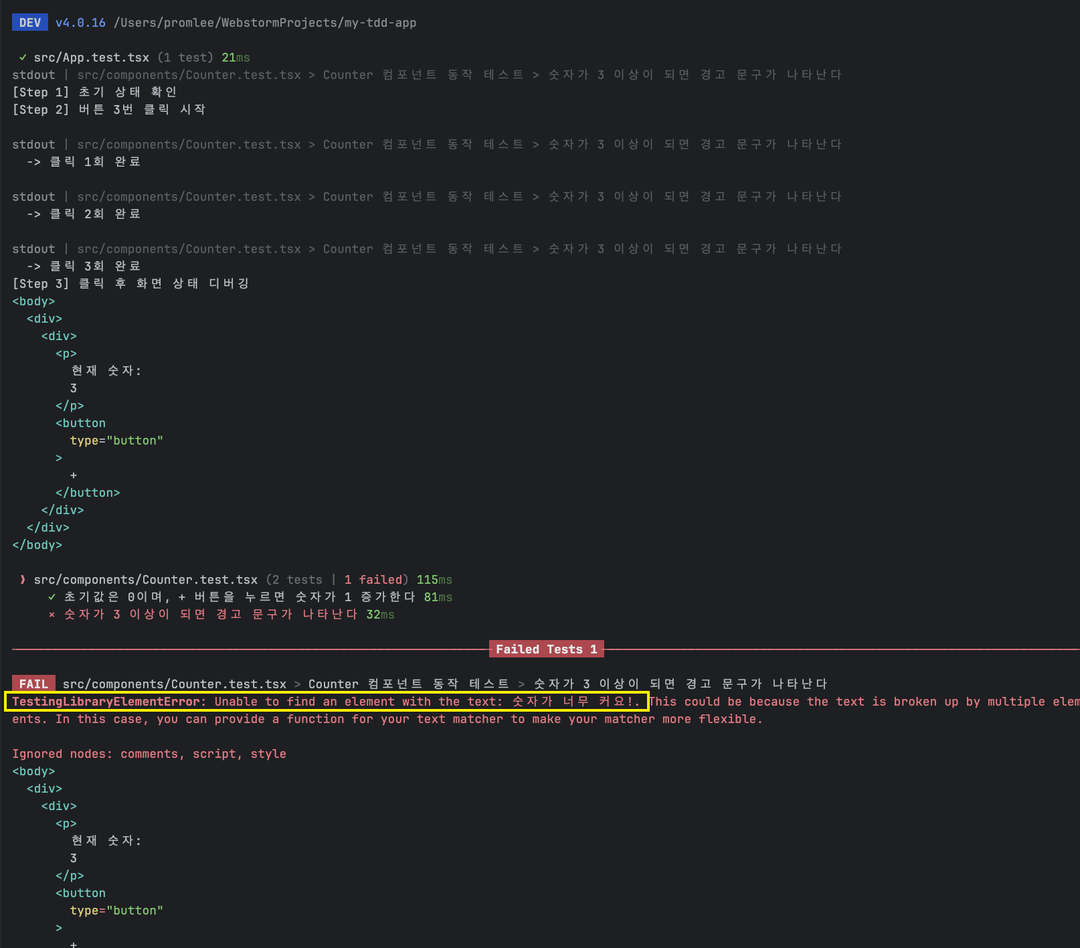
[Step 1] 초기 상태 확인
[Step 2] 버튼 3번 클릭 시작
  -> 클릭 1회 완료
  -> 클릭 2회 완료
  -> 클릭 3회 완료
[Step 3] 클릭 후 화면 상태 디버깅
<body>
  <div>
    <div>
      <p>현재 숫자: 3</p>
      <button type="button"> + </button>
    </div>
  </div>
</body>

FAIL src/components/Counter.test.tsx
TestingLibraryElementError: Unable to find an element with the text: /숫자가 너무 커요!/[Step 3] 输出的 HTML(screen.debug)可以看到,数字已经变成了 3,但预期的“숫자가 너무 커요!”警告文字并未出现。
所以最后一条 expect 语句报错,测试失败。src/components/Counter.tsx 文件的完整代码改成下面这样。import { useState } from 'react';
import CountButton from './CountButton';
export default function Counter() {
const [count, setCount] = useState(0);
const handleClick = () => {
setCount(prev => prev + 1);
};
return (
<div>
<p>현재 숫자: {count}</p>
<CountButton label="+" onClick={handleClick} />
{/* [추가] 조건부 렌더링: count가 3보다 크거나 같으면 경고 메시지 표시 */}
{count >= 3 && (
<p style={{ color: 'red' }}>
숫자가 너무 커요!
</p>
)}
</div>
);
}npm test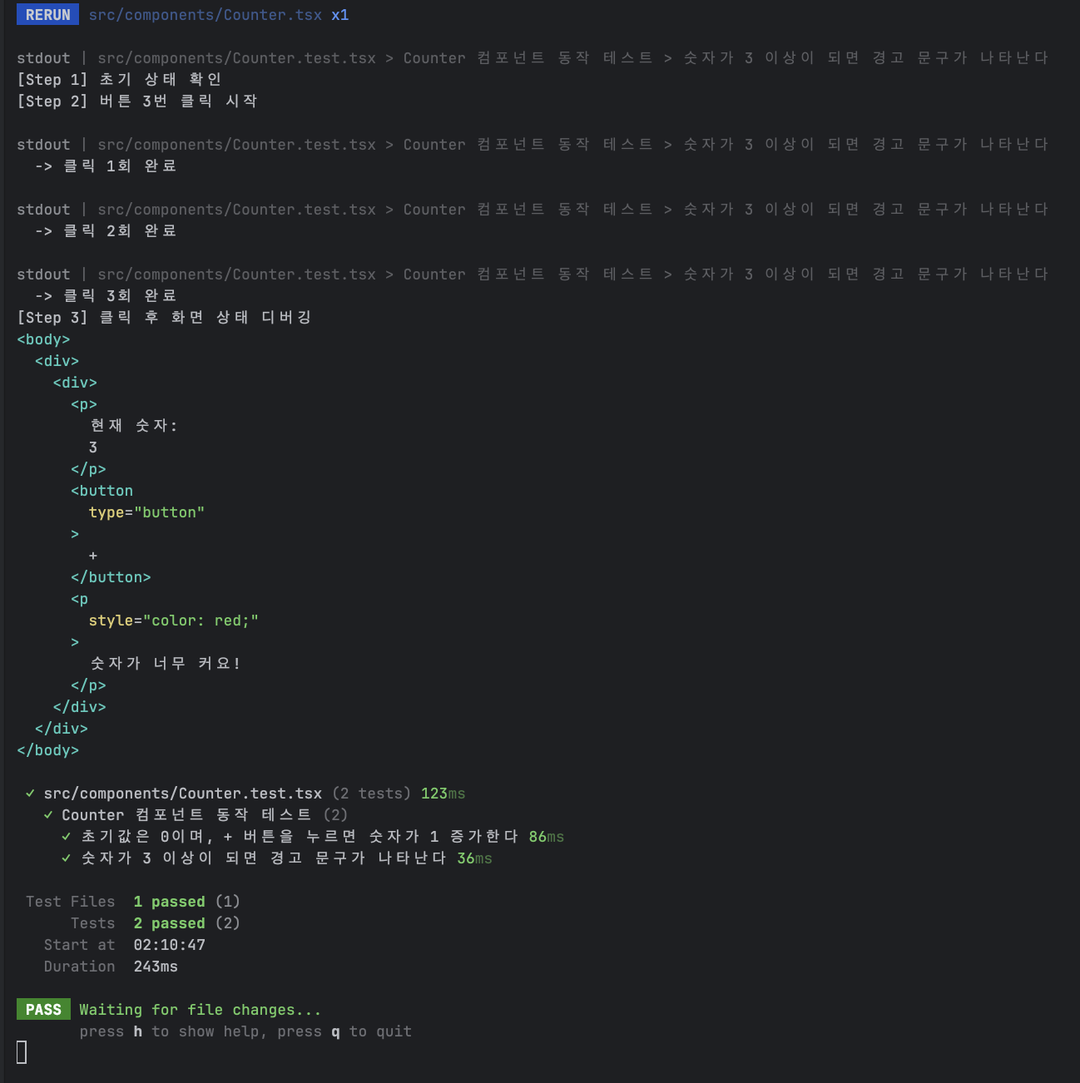
[Step 1] 초기 상태 확인
[Step 2] 버튼 3번 클릭 시작
  -> 클릭 1회 완료
  -> 클릭 2회 완료
  -> 클릭 3회 완료
[Step 3] 클릭 후 화면 상태 디버깅
<body>
  <div>
    <div>
      <p>현재 숫자: 3</p>
      <button type="button"> + </button>
      <p style="color: red;">
        숫자가 너무 커요!
      </p>
    </div>
  </div>
</body>

PASS src/components/Counter.test.tsx[Step 3] 日志中,可以清楚地看到 <p style="color: red;">숫자가 너무 커요!</p> 标签。
这说明我们编写的*条件渲染(Conditional Rendering)*逻辑正常运行。git clone https://github.com/PROMLEE/my-tdd-app.git
cd my-tdd-app
git checkout part6console.log 和 screen.debug(),就能直观地追踪执行过程,方便排查问题。queryBy,因为 getBy 在找不到元素时会报错。第 7 篇将介绍自定义 Hook 测试,学习如何抽出复杂逻辑并独立测试。